Install Bridge on Squarespace
Installing Bridge on Squarespace is simple. Bridge is built specifically for Squarespace sites and can be installed by connecting with Squarespace or using Code Injection. Follow these steps to get started.
Step 1: Get your widget code
After adding a Squarespace website in your Bridge dashboard, navigate to your Squarespace website's detail page. Hover over "Bridge Code" and the widget code will appear. Click to copy the code.
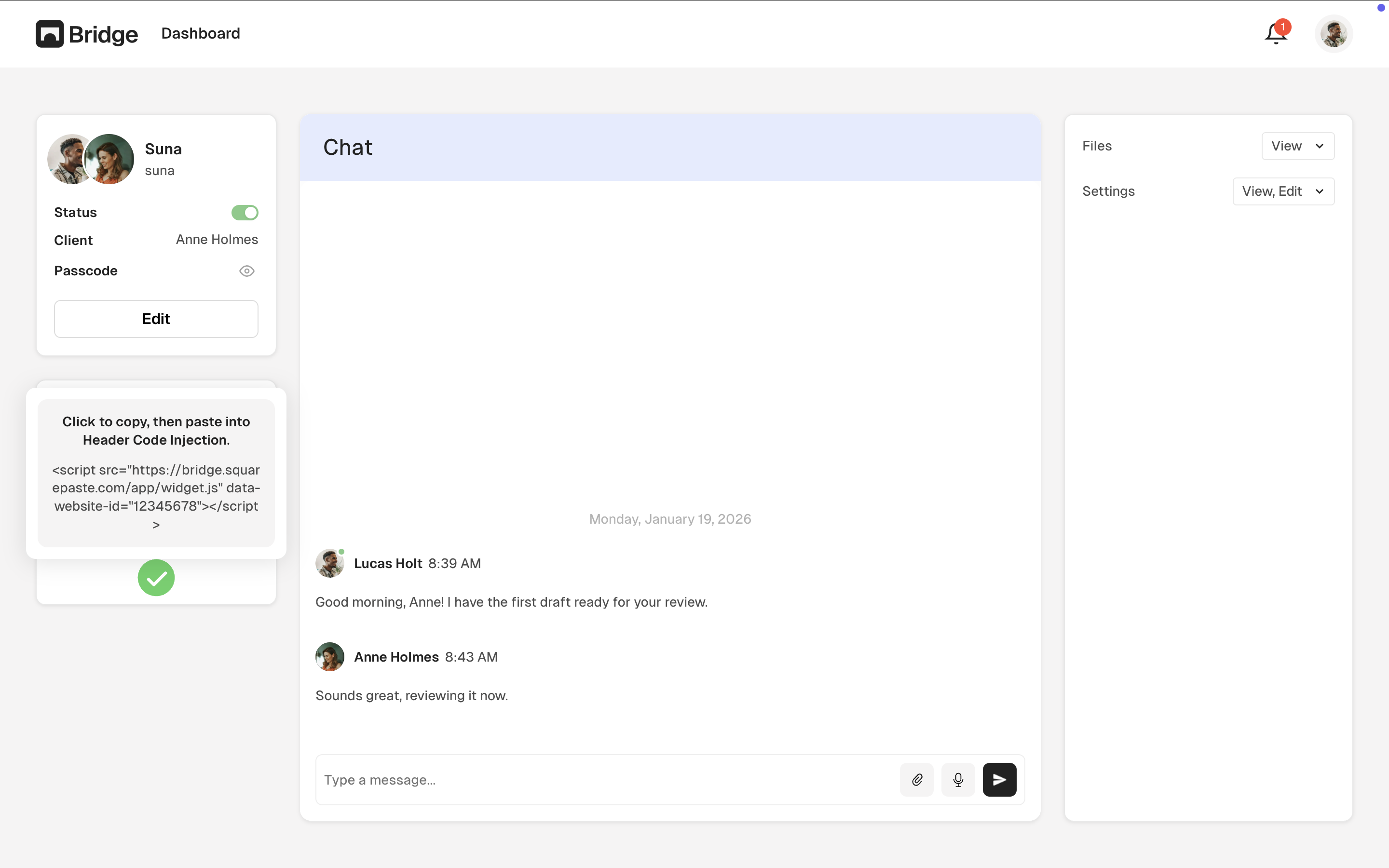
Your widget code will look like this:
<script src="https://bridge.squarepaste.com/app/widget.js" data-website-id="your-website-id"></script>
Step 2: Add the code to your Squarespace site
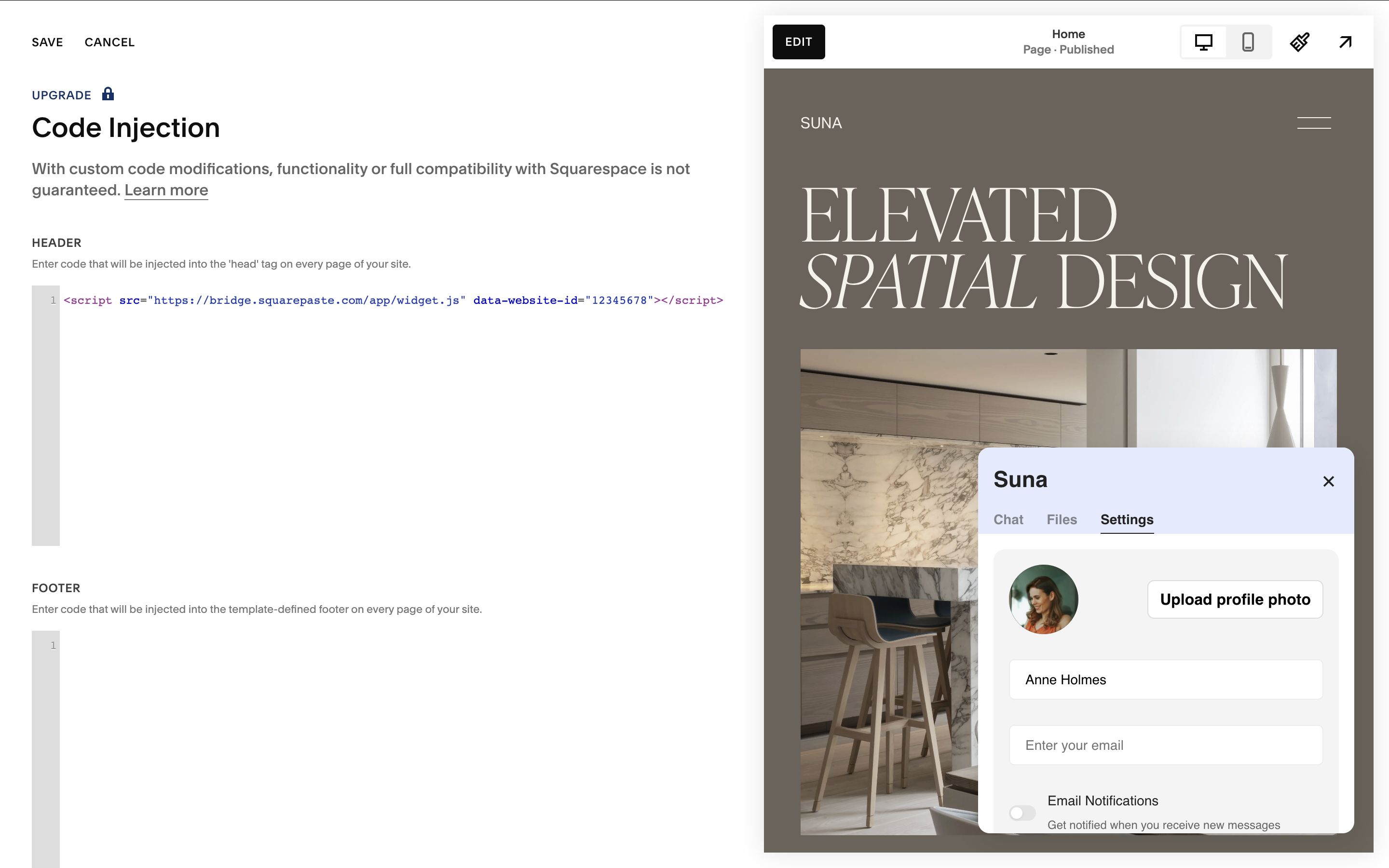
Copy the widget code and add it to your Squarespace site using Code Injection:
- In Squarespace, go to Settings → Advanced → Code Injection
- Paste the widget code into the Header section
- Click Save
Step 3: Verify installation
After adding the code, refresh your Squarespace site. You should see the Bridge chat widget appear in the bottom-right corner of your site. If you don't see it:
- Clear your browser cache and refresh
- Check that the widget code was added correctly to your Squarespace Code Injection settings
- Verify your Squarespace website is active in the Bridge dashboard
Squarespace installation guide
For detailed step-by-step instructions on installing Bridge on your Squarespace site, see our complete guide:
Tip: The Bridge widget is lightweight and won't slow down your Squarespace site. It loads asynchronously, so it won't affect your page load times.