Customize your chat widget
Make the Bridge widget yours by customizing it to match your brand. Choose your colors, upload a custom icon, and configure settings that reflect your professional identity.
Access widget settings
To customize your widget, navigate to your Squarespace website's detail page in the Bridge dashboard. Click on the "Settings" dropdown to access the customization options.
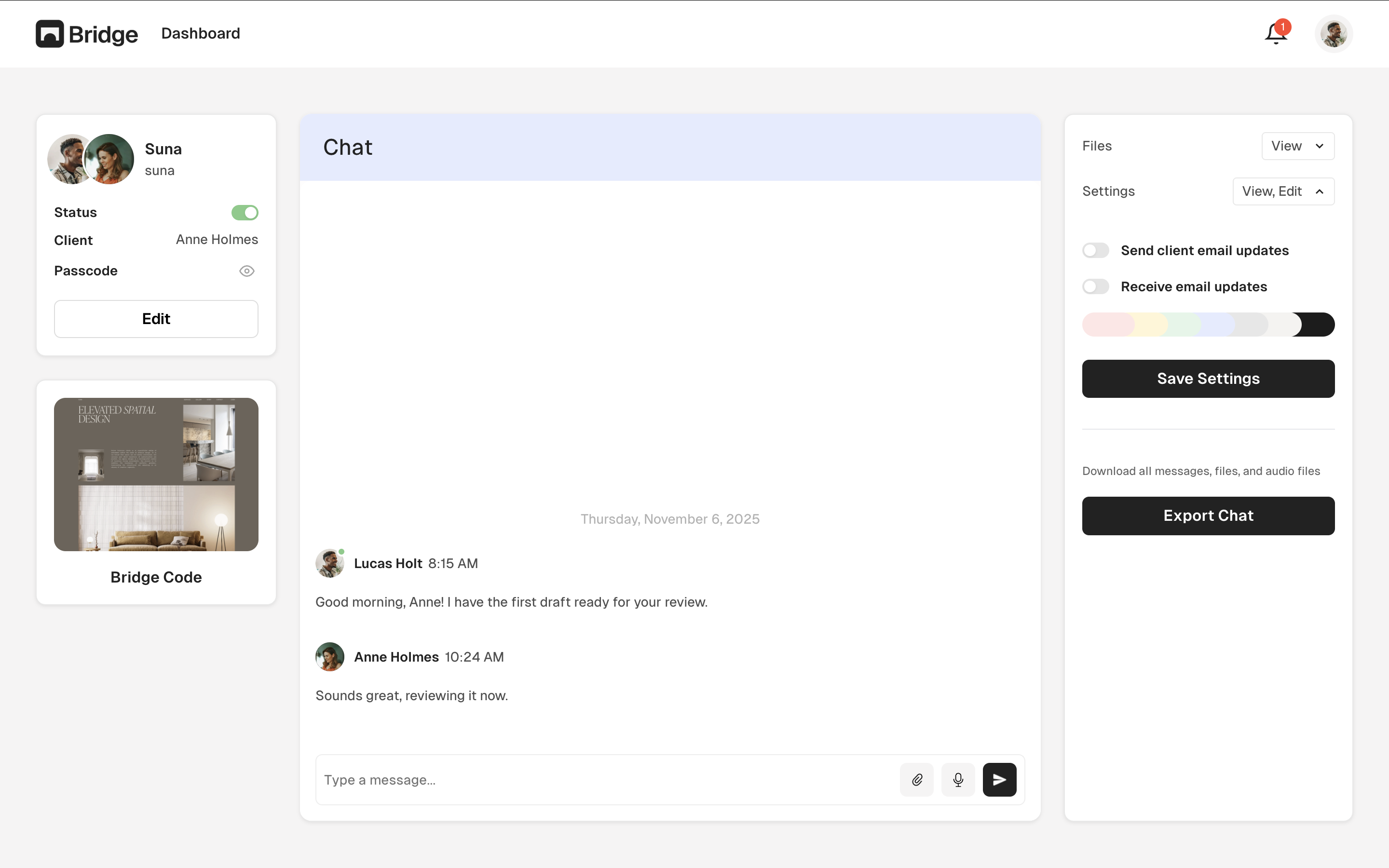
Brand color selection
Choose a brand color that matches your Squarespace site's design. This color will be used for:
- The widget button background
- Accent colors in the chat interface
Custom widget icon
Upload a custom icon to replace the default Bridge icon. Your icon will appear on the widget button. Custom widget icon is only available on the Connect and Atlas plans. Recommended specifications:
- Square format (1:1 aspect ratio)
- Minimum 64x64 pixels
- PNG or SVG format
- Transparent background (recommended)
Stealth mode
Enable stealth mode to hide the widget button until users hover near it. This keeps your Squarespace site's design clean while still making communication accessible when needed.
Tip: Keep your widget design consistent with your Squarespace site's branding for a professional, cohesive look that clients will recognize.