Dashboard overview
The Bridge dashboard is your central hub for managing all your Squarespace client websites and conversations. This guide will help you understand the main areas and features of the dashboard.
Main Dashboard
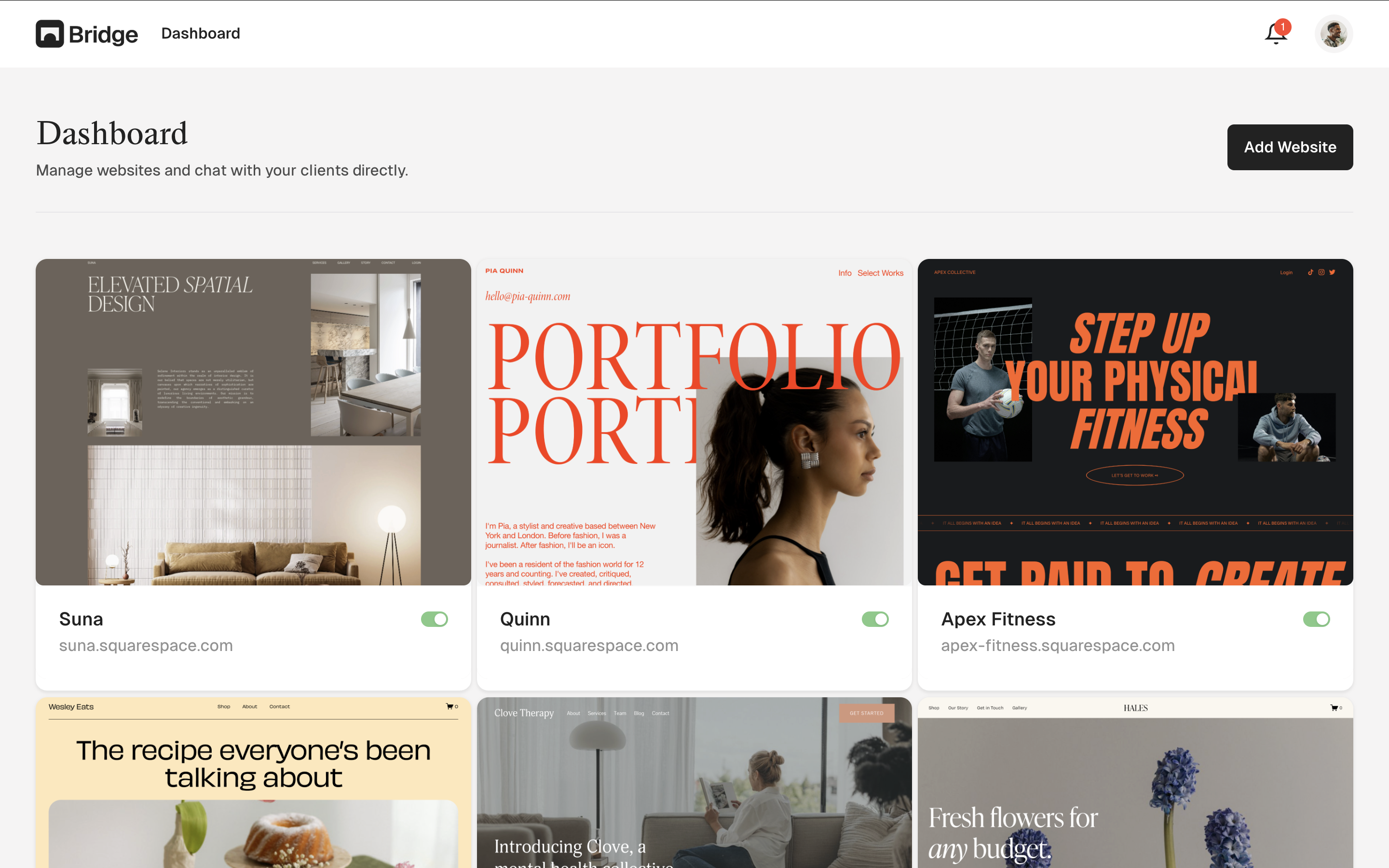
When you log in, you'll see your main dashboard which displays:
- Your Squarespace Websites: A list of all connected Squarespace sites, showing the website name, domain, and status
- Recent Conversations: Quick access to your most recent client conversations
- Quick Actions: Buttons to add a new Squarespace website or access settings
Website Management
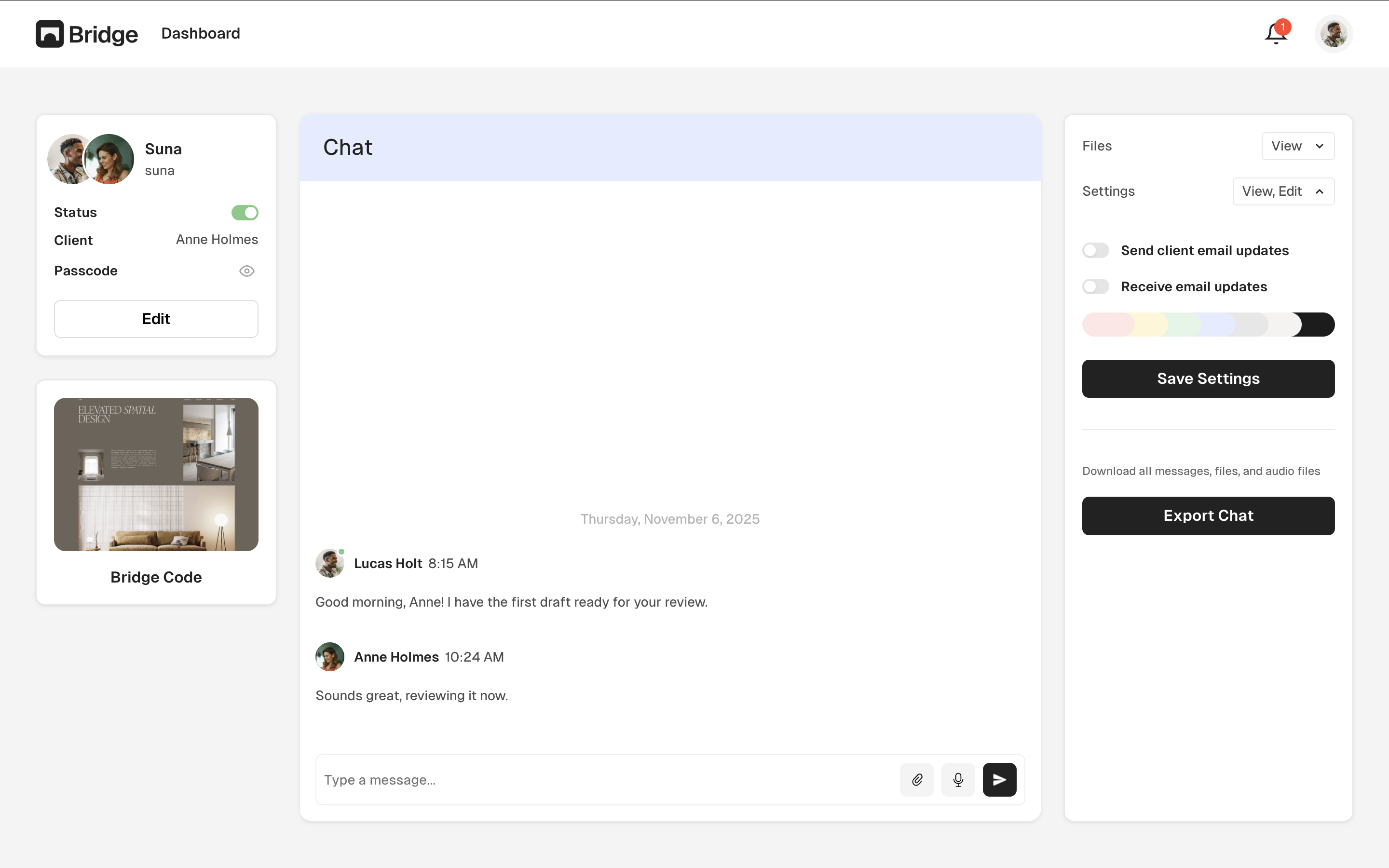
Each Squarespace website in your dashboard has its own detail page where you can:
- View and manage the conversation for that specific Squarespace site
- View and copy the widget installation code
- Edit website name and domain
- Set or change passcode protection
- Control whether you're online or offline using the toggle
- View client information and conversation history
You can customize the widget color on this website details page. To control stealth mode, click on the "Settings" tab within the widget interface on your Squarespace site.
Conversations
Each Squarespace website has one conversation where you'll interact with clients:
- Message Thread: View the full conversation history with your client
- File Sharing: Send and receive files through the chat interface
- Client Profiles: View client information and conversation history
- Online/Offline Toggle: Control whether you're available to receive messages using the online/offline toggle on the website's detail page
Settings
Access your account settings to:
- Update your profile information
- Manage your subscription and billing
- Configure email notification preferences
- View your plan details and website limits
Navigation Tips
- Click on any Squarespace website card to view its detail page
- Use the online/offline toggle to control your availability
- Access widget settings through the Settings tab in the widget interface on your Squarespace site
- Check for new messages in the conversation view
Tip: Use the online/offline toggle to control if you're online. You'll still receive messages, but clients will know if you're available or not.